

Description
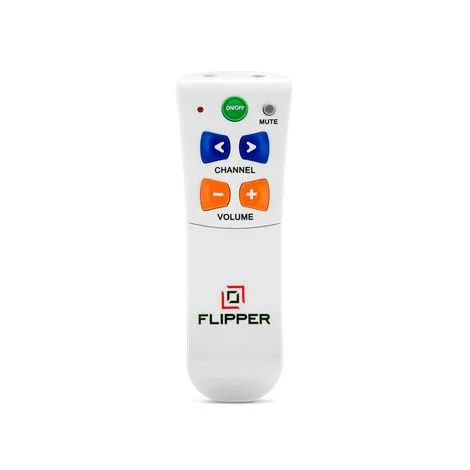
Flipper Big Button TV Remote Control is a simple, modern design that eliminates all the confusing buttons from regular remote controls that just take up space. This remote allows you to use a single remote for your TV, cable, satellite, or DTV box. Because of its multiple setup options, it is virtually universal. Flipper’s design combines stylish form and easy function with large, tactile-friendly buttons with full-function labels.
Why choose Flipper Big Button Remote?
- Jumbo Buttons
- Favorite Channel Listing
- Prevent Mistakes with a special lock feature
- Compatible With IR (Infra red) Devices
Flipper Big Button Remote Features
- Program 30 of your favorite channels for easy access
- Code entry, automatic searching, learning mode setup options
- Comfortable grip, easy to hold
- Uses 2 AAA batteries (not included)
- Simple, clear labels for easy use
- Large tactile, user-friendly buttons
- Set Up “Locks” to prevent reprogramming the TV
- Simple to set up and use & frustrating free packaging
- One-Touch on/off works both the TV & set-top box, volume controls the TV, and channel operates set-top box
- The optional “Favorite Channel” feature allows you to customize content (up to 30 channels)
- Works all providers, including ATT, Verizon, Comcast, Time Warner, Direct N, Charter
Flipper Big Button TV Remote Control User Guide
What to buy with Flipper Big Button TV Remote Control
- Atomic Unisex Watch
- Bierley ColorMouse Electronic Magnifiers
- Light Box for Visually Impaired
Flipper TV Remote Instructions
Flipper Remote Setup:
1. Program the Flipper Remote by pushing the “TV” button once. The red indicator light will blink once.
2. Test some of the buttons on the television. Try pressing the “ON/OFF” button to turn the T.V. off and on and test the volume and/or channel buttons.
3. Push the “STB” button once. Use the “ON/OFF” button, channel, and volume buttons to test the remote.
If the remote is already working, skip steps one and two.
1. For TV: Press and hold the “TV” button. The indicator light will turn solid red. Enter the four-digit code.
2. For STB: Repeat the above step by pressing and holding the “STB” button instead of the “TV” button.
3. For Dual Mode: Press and hold the “ADD” button. Press and test the other buttons.
4. For Favorites Setting up favorites is not a requirement. If the user would like to do so, refer to the user manual (Page 5, Step 3).
5. To Lock the Device: Press and hold the “ADD” button, or for TV only mode press and hold the “TV” button. The light will turn and stay red. Enter code 955.


Reviews
There are no reviews yet.